
Schedule links on your link-in-bio page
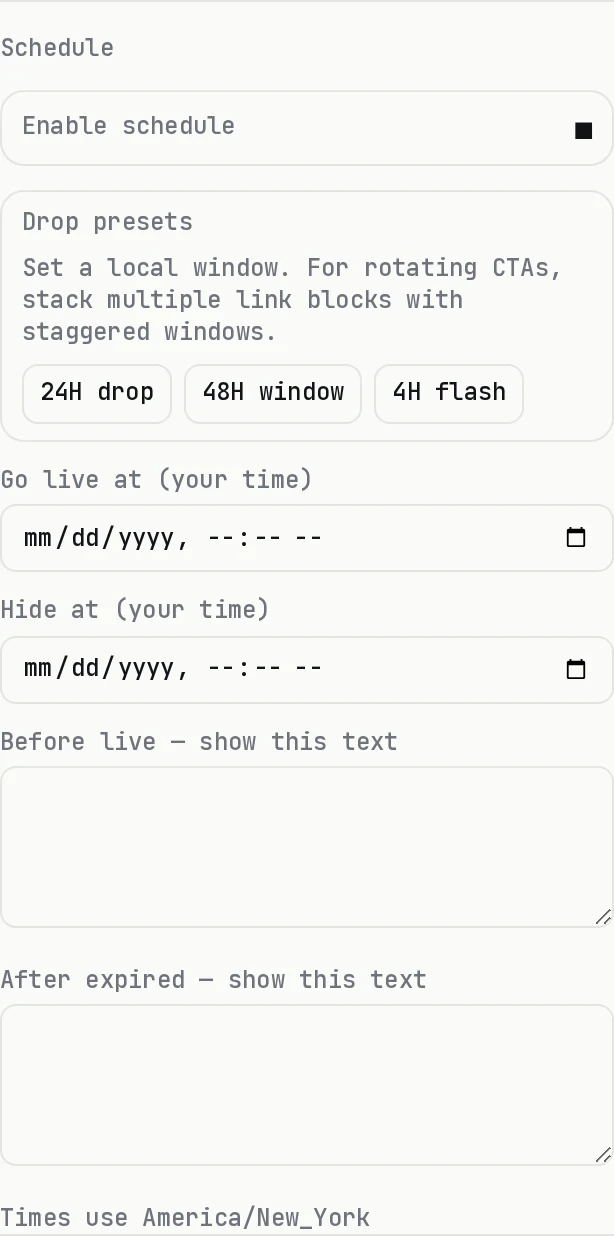
On dxd.link you can schedule any block, not only links, to appear and disappear on a clock. Set a go-live and hide-at time in your page timezone, add optional text for before and after, and publish once. Scheduling is on Creator and Founding.
How it works
- 01Set your page timezone in Settings.
- 02Select a block in the editor and open its Schedule panel.
- 03Pick a 4h, 24h, or 48h drop preset, or set go-live and hide-at times yourself.
- 04Add before text, such as tickets on sale Friday at 10, and after text, such as sold out.
- 05Publish. The block changes on its own at the times you set.
Before, during, and after
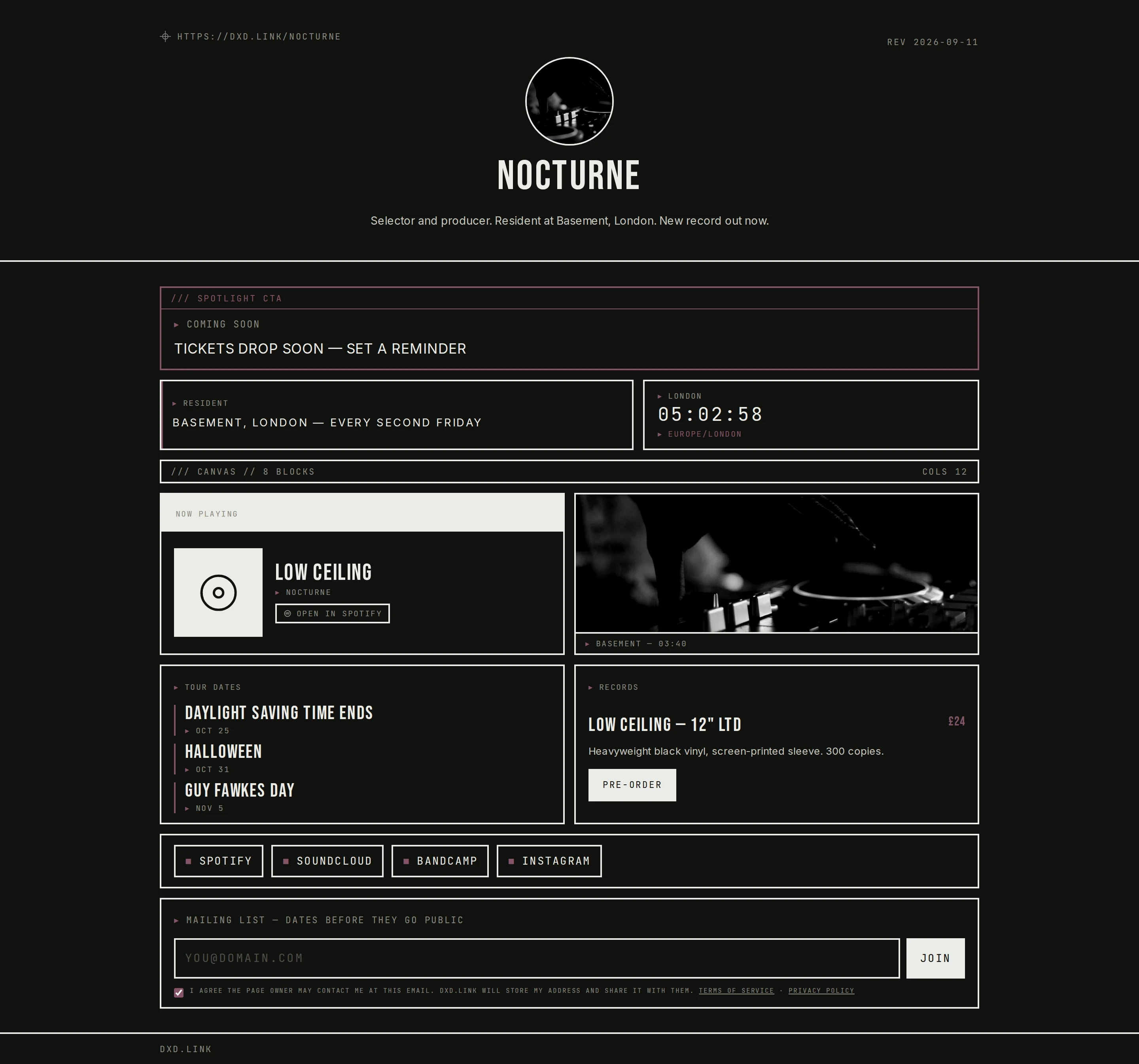
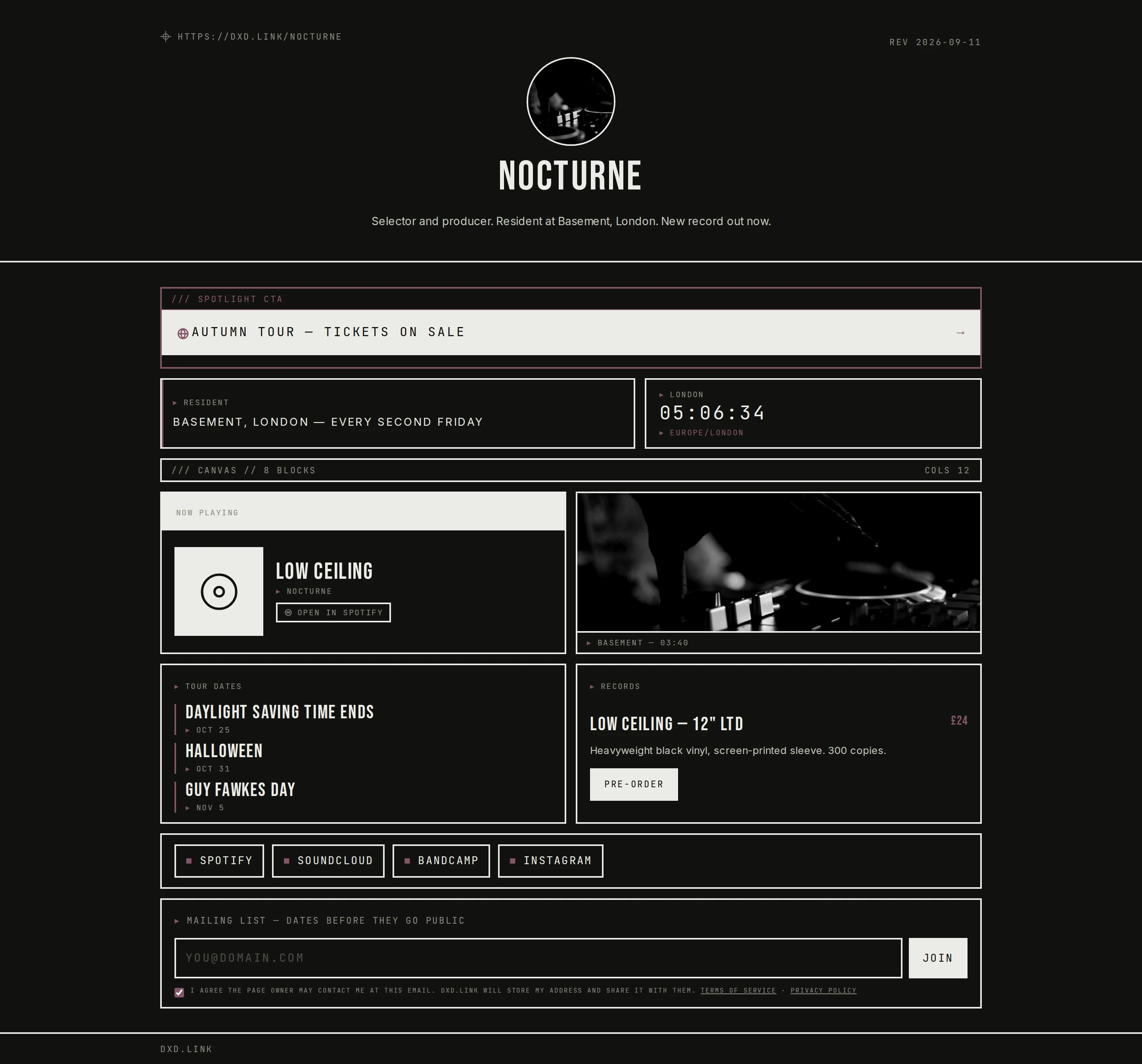
Before the window opens, visitors see your before text in place of the call to action. During the window, the real link shows. After it closes, your after text replaces it, so nobody lands on a sold-out page.
Any block, any window
Schedule a spotlight link, a product card, a booking button, or a video. To rotate offers, schedule one block after another so the next appears when the last ends.
Your timezone, not the visitor's
Windows use the timezone set for your page, so a 10 a.m. drop means 10 a.m. where you are, wherever the visitor is.
Which plan
Scheduling needs Creator ($4.99 a month) or Founding. Free pages publish every block, without schedules.
Questions
Which plan includes scheduled links?
Creator ($4.99 a month) and Founding ($49.99 a year). Free pages publish every block, but without schedules.
Can I schedule blocks other than links?
Yes. Any block can take a schedule, including product cards, booking buttons, images, and videos.
Which timezone does the schedule use?
Your page timezone, set in Settings. Visitors everywhere see the change at the same moment.
Can a schedule repeat every week?
Each schedule is a single window with a start and an end. For a recurring slot, add one scheduled block per window, or keep a CALENDAR block with your recurring events.
What do visitors see before and after the window?
Whatever you write. Before text shows until go-live, and after text shows once the window ends. Leave them empty and the block stays hidden outside the window.
- MusiciansOne page for the new record, tour dates, merch, and your mailing list. Free to publish, with live Spotify now-playing on Creator.
- ArtistsShow the work, sell prints through your existing shop, and open commissions from one page. Free to publish at dxd.link/yourname.
- PodcastersLatest episodes from your RSS feed, listen links for every app, and a newsletter signup on one page. Free to publish.
- StreamersYour stream schedule from a calendar feed, clips, every channel, and merch on one page. Free to publish at dxd.link/yourname.
- Small businessesYour address, products, bookings, and latest post on one page for Instagram and Google profiles. Free to publish.
- CoachesA booking button, upcoming workshops, your programs, and an email list on one page. Free to publish at dxd.link/yourname.